How to Install the Pinterest Pin Stats Extension

By Ruslan Saifullin, Pinterest analytics developer & founder of Pin Stats · Published April 22, 2025 • Updated August 16, 2026
Key takeaways
- How do I install Pin Stats? Open the Pinterest Pin Stats & Sort listing on the Chrome Web Store, click Add to Chrome, then Add Extension in the confirmation popup. Once it installs, click the puzzle icon beside the address bar and pin the extension so it stays visible in your toolbar.
- Which browsers does it work in? Chrome, and Chromium-based browsers that allow Chrome Web Store extensions: Edge, Brave, Vivaldi, Arc and Opera. Edge and Opera need their “allow extensions from other stores” setting or add-on turned on first. Firefox and Safari are not supported.
- Do I need an account to use it? No. There is no Pin Stats account and no sign-up. Being logged into your own Pinterest account gives the best experience, and the high-quality pin download button works without any login at all.
- What do I see once it is installed? Saves, repins, likes, shares, comments and the creation date appear directly on each pin as you browse — on the home feed, search results, Idea Pins and pin detail pages — with nothing to click through.
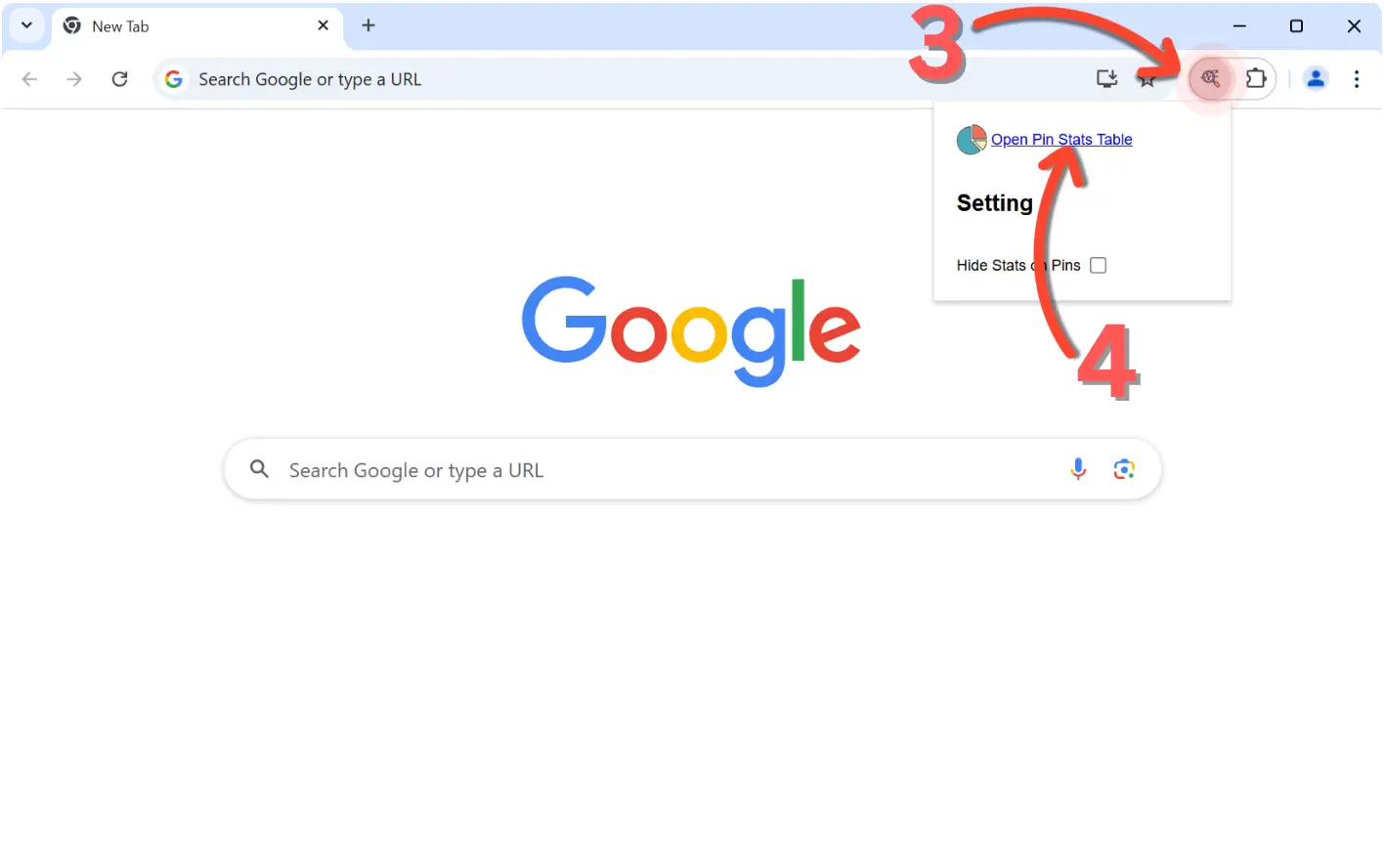
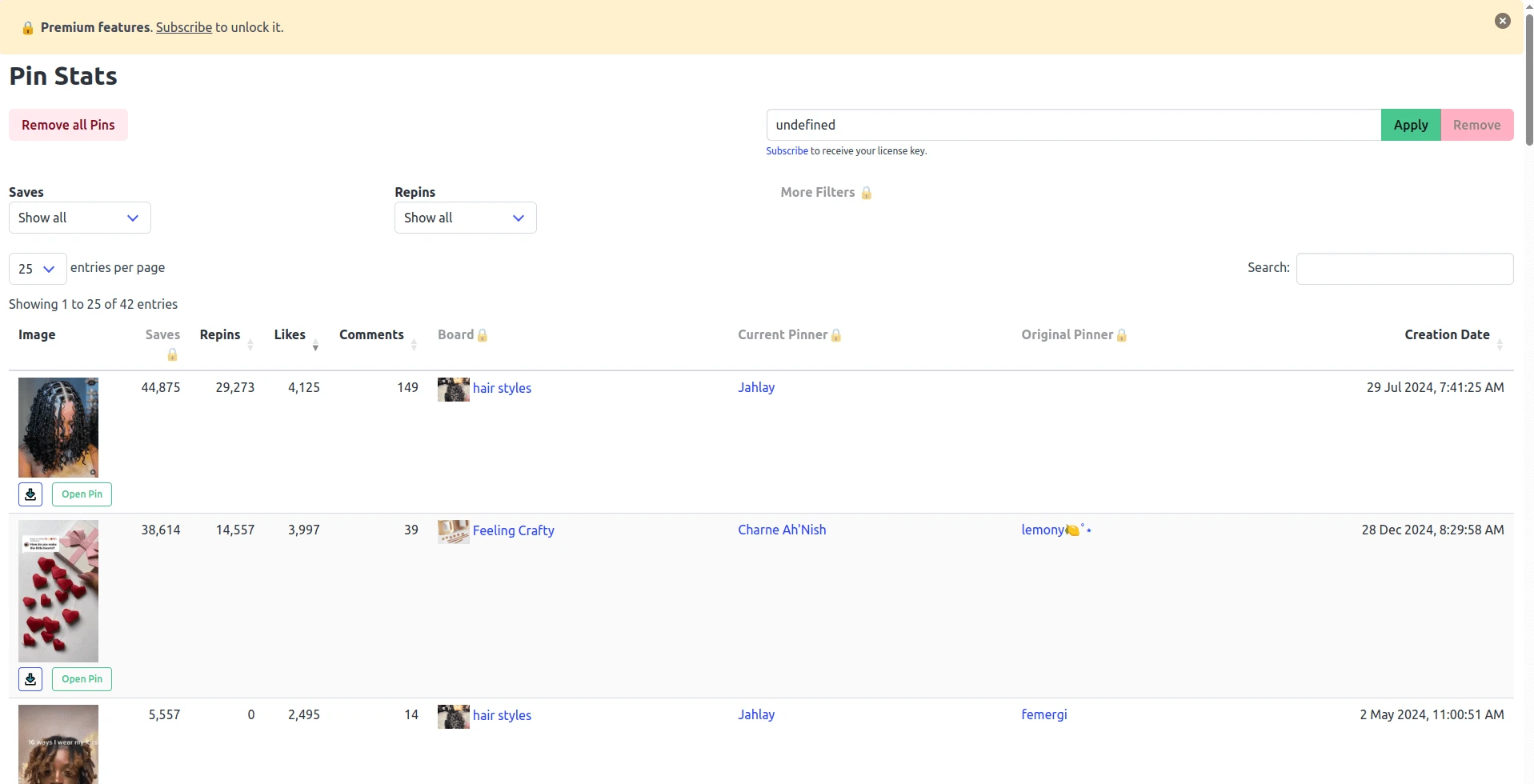
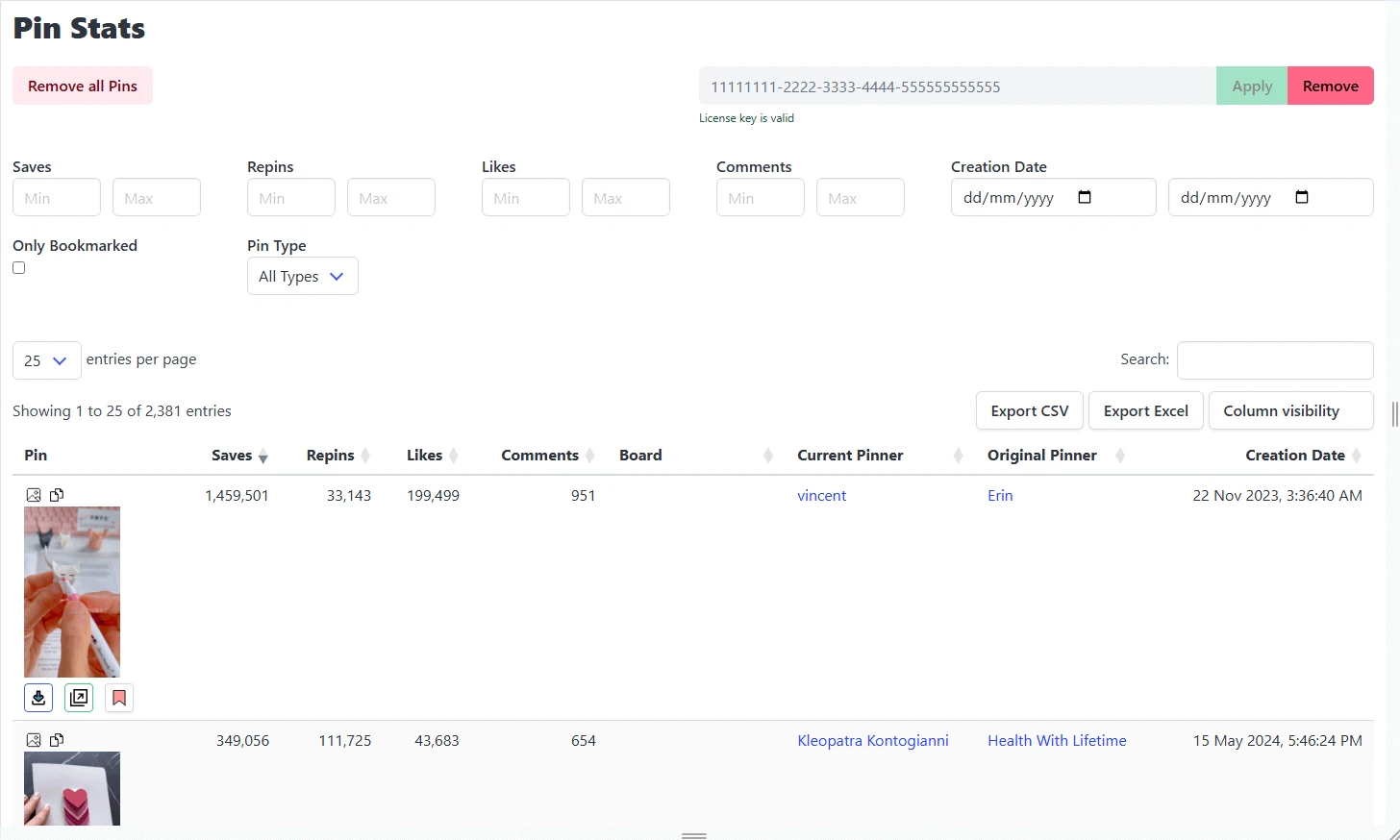
- What is the Pin Stats table for? Click the extension icon, then Open Pin Stats Table, to see every pin you have browsed in one place. The free version filters by stats, sorts by engagement or date, and searches by keyword; Autoscroll loads more pins for you while you work.
How to install the extension
- Go to the Pinterest Pin Stats listing on the Chrome Web Store.
- Click “Add to Chrome”.
- In the popup, click “Add Extension”.
- Wait a few seconds — the extension installs and appears next to the address bar.
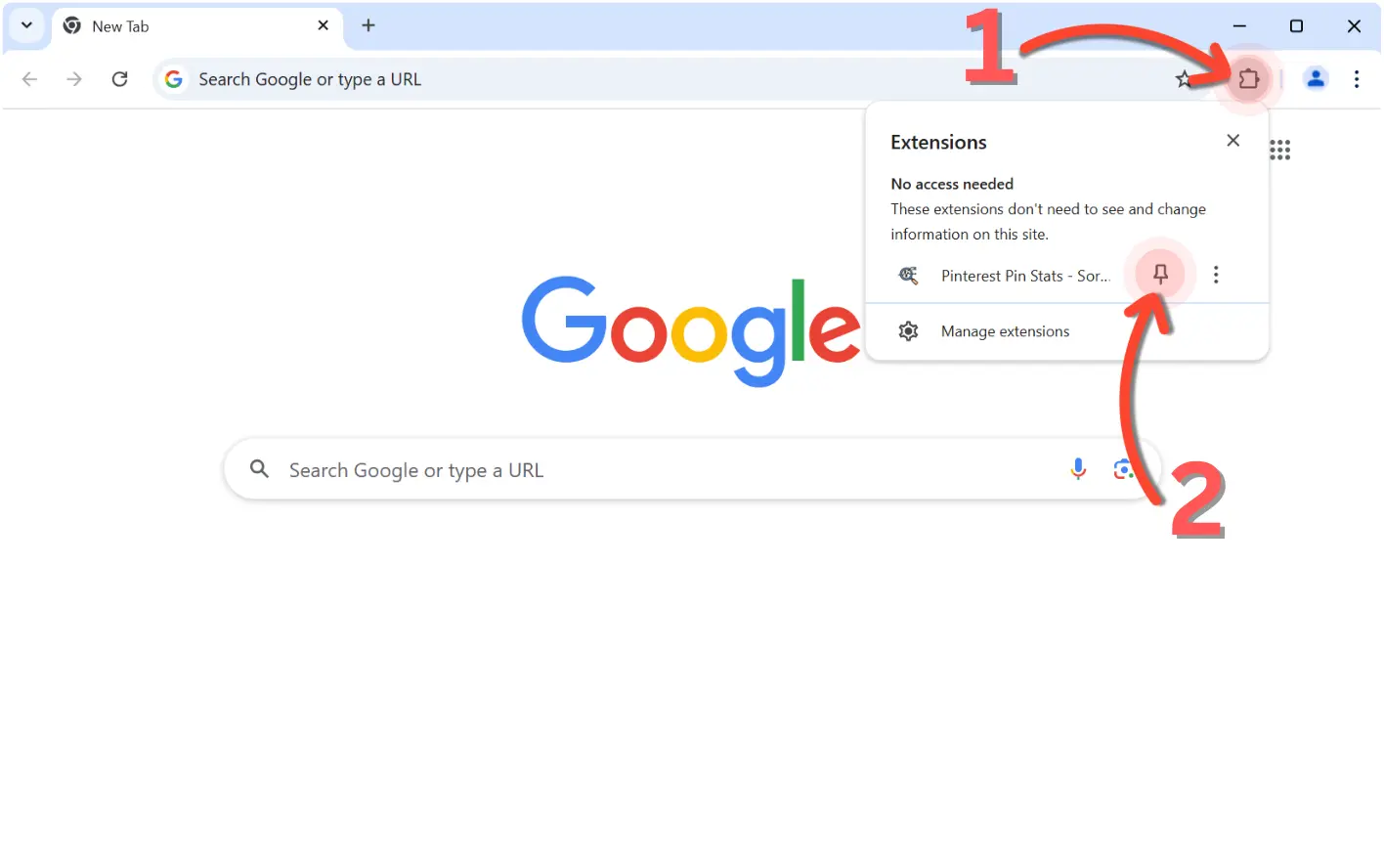
- Click the puzzle icon (1) in the top-right corner of your browser, then click the pin (2) next to the extension to keep it in your toolbar.
Note: Pin Stats works in Chrome and in Chromium-based browsers that allow
Chrome Web Store extensions — Edge, Brave, Vivaldi, Arc and Opera (Edge and Opera
need their “allow extensions from other stores” setting or add-on turned on).
Firefox and Safari are not supported. No account is required.
How to use the extension
Browse Pinterest as usual
Make sure you are logged into your account for the best experience.
View pin stats instantly
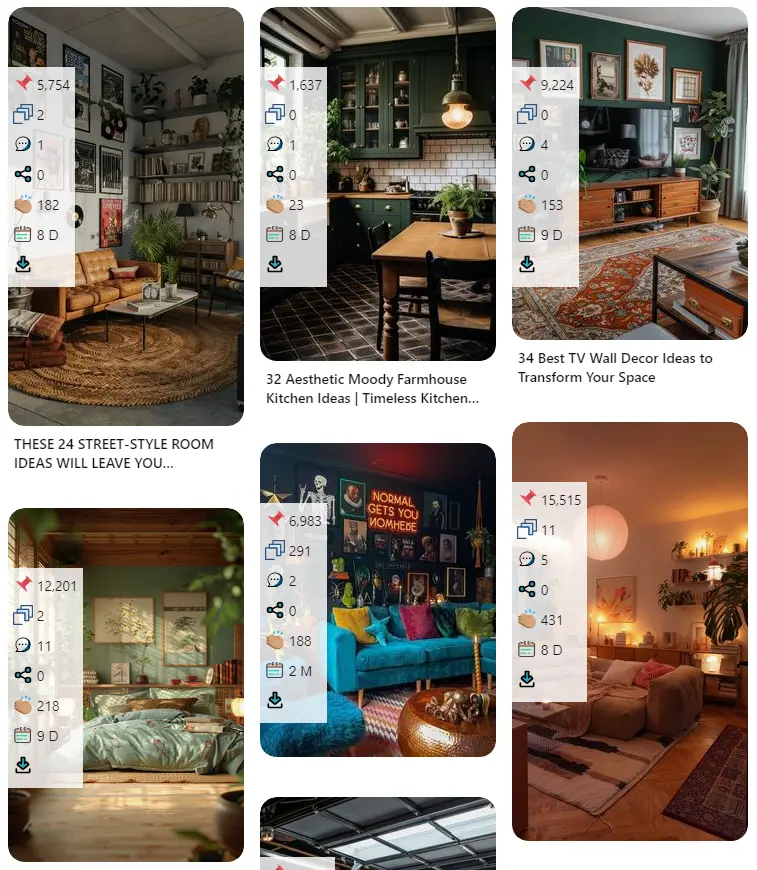
The extension:
- Shows key stats (saves, repins, likes, shares, comments, and creation date) right on each pin — no need to click or open them.
- Adds a “Download Pins in high quality” button on pins (no login needed).
- Lets you save pins to bookmarks for quick access later.
It works on:
- Home Feed
- Search Results
- Idea Pins Page
- Pin Detail Page
Use the extension tools
- Click the extension icon in your browser to open its popup.
- To hide stats from pins, check the “Hide Stats on Pins” box.
- Click “Autoscroll” to scroll automatically and load more pins for analysis.
Analyze pins in detail
Click “Open Pin Stats Table” in the popup to see all saved pins in one place.
There, you can:
- Filter pins by stats (saves, repins, and so on)
- Sort pins by engagement or date
- Search pins by keywords
Upgrade for more options (paid version)
- Unlock advanced filters (by exact saves, likes, date, pin type)
- More sort options
- Export data to CSV or XLS files for analysis
Next: Already purchased? Read
how to activate your license for the extension.
Next step: Install the extension free, open any Pinterest board, and sort the table by saves — the pattern behind your best pins usually shows up immediately. Compare free vs Pro when you are ready for filters and exports.