10 Best Pinterest Scheduling Tools in 2026

By Ruslan Saifullin, Pinterest analytics developer & founder of Pin Stats • Published October 1, 2026
Key takeaways
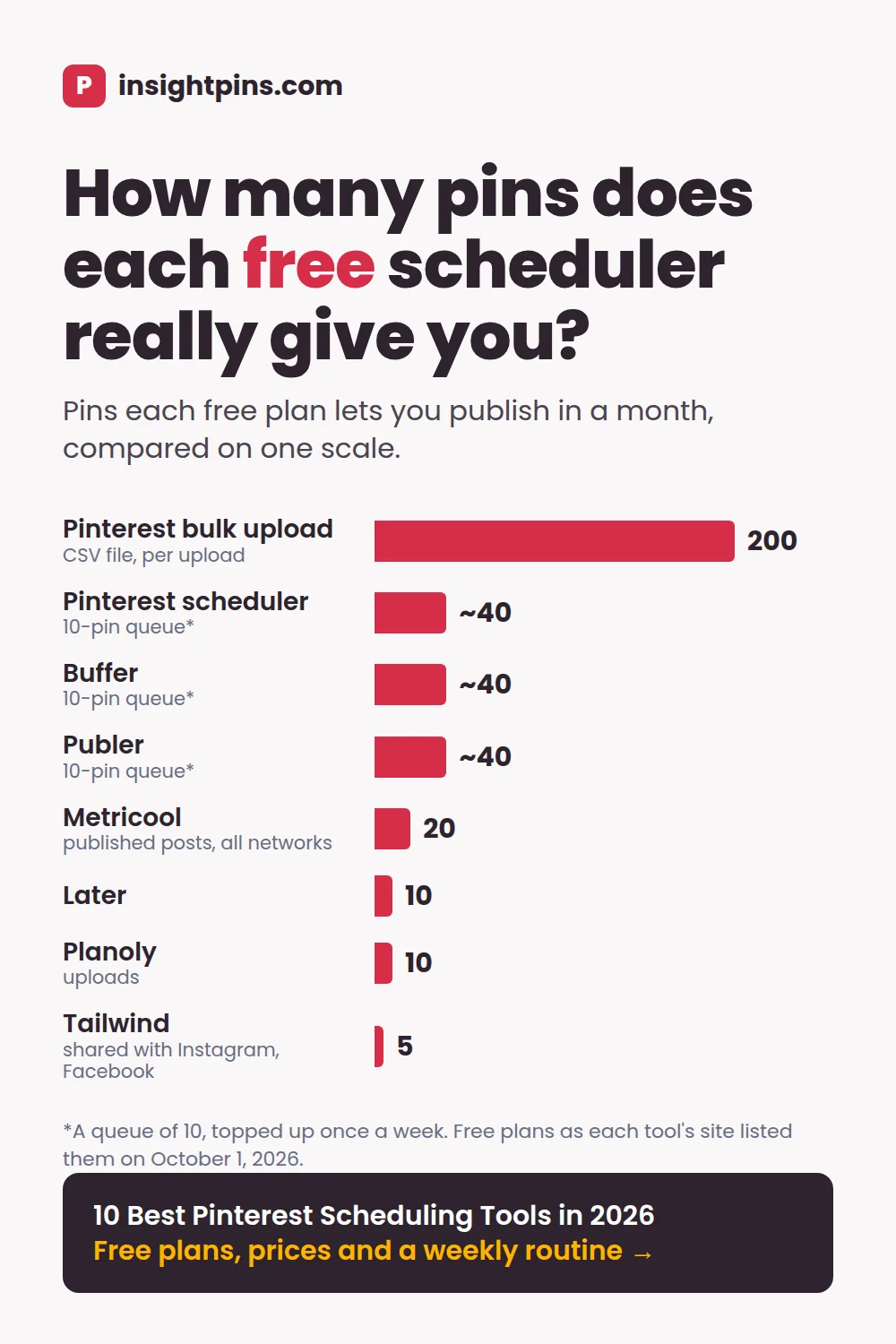
- Why don't free Pinterest schedulers compare? They limit different things. Buffer and Publer cap the queue at 10 pins per account, refilled as pins publish. Later allows 10 posts a month and Tailwind 5, shared with Instagram and Facebook. Metricool allows 20 a month, counted when they publish.
- What is the best free Pinterest scheduler? For most bloggers, Pinterest itself. RSS auto-publish turns each new post into a pin, the scheduler queues 10 more up to 30 days ahead, and a CSV upload schedules up to 200 at once. All free with a business account.
- What does a paid scheduler add? One queue for several networks, a calendar you can see a month of at once, and fewer clicks per pin. Paid plans start at $5 per channel a month (Buffer) and $17.99 a month (Tailwind), both billed annually.
- What should I schedule? Pins for keywords people search, in formats already winning in your niche. Check both before you batch-design, not after; a scheduler only decides when a pin goes out.
- Can ChatGPT or Claude schedule my pins? Not on their own. Use them to write the pin copy and build the bulk-upload CSV, then let Pinterest's free bulk upload schedule it. Keep browser agents out of your Pinterest account: Pinterest does not allow automation it has not approved.
You designed twenty pins on Sunday. Your scheduler's free plan ran out after five. Pinterest now has 640 million monthly active users (Pinterest Q2 2026 results, SEC filing), and getting pins in front of them steadily is what Pinterest scheduling tools are sold on. The free plans are where most people start, and they are hard to compare.
Each one counts something different: pins waiting in a queue, posts published per month, uploads, or a monthly allowance shared with Instagram. This guide puts every free plan on one Pinterest number. It starts with the free tools Pinterest gives you itself, which do more than most roundups admit, then covers what each third-party scheduler costs and a weekly routine that uses them.
- TL;DR: which scheduler fits your volume
- What "free" means for each scheduler
- Pinterest's own free publishing tools
- Third-party Pinterest schedulers
- Comparison table
- Why scheduled pins do not publish
- A weekly Pinterest publishing routine
- Scheduling pins with ChatGPT or Claude
- How to choose a Pinterest scheduler
- Frequently asked questions
- Conclusion
TL;DR: Which Pinterest Scheduling Tool Fits Your Volume
- A few pins a week: Pinterest's own scheduler. Up to 10 pins queued, each up to 30 days ahead. Free.
- A blog that publishes regularly: RSS auto-publish, which turns every new post into a pin, plus the scheduler for extra pins. Free.
- A batch of 20 to 200 pins at once: Pinterest's bulk upload, a CSV with a publish date for each pin. Free.
- Daily pinning, or Pinterest next to other networks: a paid scheduler such as Tailwind, Buffer or Later, priced per account or per channel.
- Want AI to prepare the week: ChatGPT or Claude writes the pins and the CSV; Pinterest's bulk upload schedules them. See how.
We do not make a scheduler, so there is no pick of ours here. Our own tool, Pin Stats, helps with the step before scheduling: deciding what is worth it.
What "Free" Means for Each Pinterest Scheduler
Every Pinterest scheduler advertises a free plan, and almost none of the numbers line up. That is because they limit three different things:
- A queue limit caps how many pins can wait to publish at once. Pinterest's own scheduler, Buffer and Publer work this way. When a pin goes live, its slot frees up.
- A monthly limit caps how many posts go out in a calendar month, however you space them. Tailwind, Later and Metricool work this way.
- An upload limit caps how many pieces of content you can add each month. Planoly works this way.
Think of a queue limit as a car park with 10 spaces: cars leave and new ones come in all month. A monthly limit is a 5-ride pass. A queue of 10 that you top up every Sunday can publish around 40 pins a month; a monthly limit of 5 stops at 5, however you space them.
Queue limit · Pinterest, Buffer, Publer
- Pins 1 to 10 scheduled - The queue is full at 10
- Pins 11 and 12 wait for a free slot - Each pin that publishes frees one
Monthly limit · Tailwind free plan
- Pins 1 to 5 scheduled - The month's allowance, shared with Instagram and Facebook
- Pins 6 to 12 blocked - Nothing more until the 1st of next month
Per upload · Pinterest bulk CSV
- Pins 1 to 12 in one file - Each row has its own publish date
- Room for 188 more - Up to 200 pins per upload
Limits as each tool's own pages stated them on October 1, 2026.
| Tool | What the free plan limits | The Pinterest number |
|---|---|---|
| Pinterest scheduler | Pins in the queue | 10 pins, each up to 30 days ahead |
| Pinterest bulk upload | Pins per CSV file | 200 pins per upload |
| Buffer | Posts in the queue, per channel | 10 pins at a time |
| Publer | Posts in the queue, per account | 10 pins at a time |
| Metricool | Posts published per month, all networks | 20 posts a month |
| Later | Posts per month | 10 pins a month |
| Planoly | Uploads per month, whole workspace | 10 uploads a month |
| Tailwind | Posts per month, shared with Instagram and Facebook | 5 posts a month |
Free plans as each vendor's own pages described them on October 1, 2026. They change often; check before you build a routine on one.
Pinterest's Own Free Publishing Tools
Before paying for a scheduler, look at what Pinterest already gives a business account for free. There are four tools, and for a solo blogger they often cover the whole job.
The pin scheduler
When you create a pin, choose Publish at a later date and pick a day and time. You can schedule a pin up to 30 days ahead and have up to 10 scheduled at once, according to Pinterest's help page on scheduling pins. You schedule one pin at a time.
After scheduling you can still change the publish date, title, board, description and link. You cannot swap the image or video.
Bulk upload by CSV
This is the tool most roundups skip. Pinterest lets a business account upload up to 200 pins at once from a CSV file. The file has a publish date column. Put a future date there and the pin is scheduled for that day; leave it empty and the pin publishes straight away.
In effect, that is a free 200-pin scheduler. The catch is the spreadsheet. Each row needs a title of up to 100 characters and a media URL that links straight to a public image or video file. The description can run to 500 characters, and dates are in UTC. A badly formatted date stops that pin from publishing.
Fails
- Media URL: drive.google.com/file/d/… - A share page, not a direct link to the image file
- Publish date: 10/07/2026 6pm - Wrong format: this row errors and the pin is not published
- Title: One Pot Pasta - Valid, but leaves the keyword phrase people search unused
Publishes
- Media URL: yourblog.com/wp-content/uploads/one-pot-pasta-pin.jpg - Direct link to the file, opens without logging in
- Publish date: 2026-10-07 22:00:00 - UTC: 6pm in New York that day
- Title: One Pot Pasta in 20 Minutes (Easy Weeknight Dinner) - Under 100 characters, keyword first
Column rules from Pinterest's bulk upload help page. A date with no time publishes at the time of day you upload the file.
Start from the header row below, which uses Pinterest's column names, or download our template with three example rows filled in.
Title,Media URL,Pinterest board,Thumbnail,Description,Link,Publish date,KeywordsRSS auto-publish
If you run a blog, this may be the only Pinterest scheduling tool you need. RSS auto-publish watches your blog's feed and turns each new post into a pin on a board you choose, up to 200 pins a day. There is nothing to queue: publish the post, and the pin follows.
The feed must come from a website you have claimed on Pinterest. You also give up control of the pin itself. It uses whatever image and text the feed supplies, so a post with a weak featured image gets a weak pin.
On your blog
- You publish a new post - Its title, featured image and link go into your RSS feed
Pinterest checks the feed
On Pinterest
- The feed is on your claimed website - Feeds from other domains are not accepted
- New post found - Up to 200 pins a day
a pin is created
On your board
- A pin that links to the post - Made from the feed's image and text, on the board you picked
Instagram auto-publish
Link your Instagram account and Pinterest turns new Instagram posts into pins, on a board it creates or one you pick (Pinterest's help page). It suits a shop or creator already posting to Instagram. Pinterest recommends a 2:3 portrait ratio for pins, and most Instagram posts are square or 4:5, so treat it as a top-up, not a plan.
Where Pinterest's own tools fall short: the scheduler holds only 10 pins and takes them one by one, the CSV route needs a spreadsheet, and none of them helps with any other network. Those three gaps are what the third-party tools sell.
Third-Party Pinterest Schedulers
Pinterest names Tailwind, Buffer, Canva and Picsart as content management partners for planning and scheduling pins (Pinterest Create blog). In plain terms, those tools publish through Pinterest's official connection rather than by logging in as you. That is worth checking for any scheduler you consider.
Tailwind
- Category: a scheduler built around Pinterest, now also covering Instagram and Facebook.
- Best for: daily pinning across many boards.
- Why use it: SmartSchedule suggests posting times, a pin designer, Communities for sharing pins with other creators, and a browser extension for queueing images from any page.
- Cost: the free plan allows 5 posts a month across all three networks combined. Paid plans (Pro, Advanced and Max) start at $17.99 a month billed annually; see Tailwind's pricing page for each plan's allowance.
Tailwind publishes its own best-time-to-pin data alongside SmartSchedule. That is a vendor's research about a feature it sells; treat it as a starting point to test, not a fact about Pinterest.
Buffer
- Category: a simple multi-network scheduler.
- Best for: a creator posting to Pinterest and two other networks.
- Why use it: a clean queue and calendar, and a free plan with a queue limit rather than a monthly one.
- Cost: free for 3 channels with 10 scheduled posts each at a time. Essentials is $5 per channel a month billed annually, or $6 monthly, with no cap on scheduled posts (Buffer pricing).
Metricool
- Category: a social suite with planning, publishing and analytics.
- Best for: one dashboard for Pinterest and several other networks on a small budget.
- Why use it: its free plan counts only posts that actually publish, and the count resets on the 1st of each month.
- Cost: the free plan publishes 20 posts a month across all networks. Paid plans start at $20 a month billed annually (Metricool pricing).
Later
- Category: a visual planner, strongest on Instagram.
- Best for: creators who plan pins and Instagram posts together on one calendar.
- Why use it: drag-and-drop calendar, saved captions and a media library.
- Cost: Later's Pinterest scheduler page says the free plan schedules up to 10 posts a month, with the calendar limited to two weeks ahead. Starter is $18.75 a month billed annually, with 30 posts per profile a month.
Planoly
- Category: a visual planner, mobile first.
- Best for: planning on a phone.
- Why use it: plans Pinterest and Instagram side by side, with a browser uploader for saving images from any page.
- Cost: the free plan allows 10 uploads a month for the whole workspace, resetting on the 1st. Paid plans come with a 14-day trial (Planoly pricing).
Publer
- Category: a multi-network scheduler with bulk tools.
- Best for: a queue-style free plan across three accounts.
- Why use it: 10 scheduled posts per account at a time on the free plan; when one publishes, you can add another.
- Cost: free for 3 accounts. To connect Pinterest on the free plan, the account needs at least 100 followers or a claimed website. Paid plans are listed on Publer's plans page.
Canva
Many Pinterest creators already design their pins in Canva. Its Content Planner can schedule a design straight to Pinterest, but scheduling is a Canva Pro (or higher) feature, according to Canva's help centre. If you already pay for Pro, it saves an export and an upload per pin. If you do not, it is not a reason to start.
Hootsuite and Sprout Social
Both schedule to Pinterest, and neither has a free plan. Hootsuite starts at $99 per user a month and Sprout Social at $199 per seat a month. They are built for teams that need approvals and reporting across many accounts, which is more than a solo blogger needs.
Pinterest Scheduling Tools Compared
| Tool | Free plan for Pinterest | What it counts | Other networks | Paid from |
|---|---|---|---|---|
| Pinterest (native) | 10 scheduled pins; 200 per CSV upload; RSS up to 200 a day | Pins in the queue; pins per upload | No (imports from Instagram) | Free |
| Tailwind | 5 posts | Posts a month, shared across networks | Instagram, Facebook | $17.99/mo billed annually |
| Buffer | 10 posts at a time, 3 channels | Posts in the queue | Yes | $5 per channel/mo billed annually |
| Metricool | 20 posts | Posts published a month | Yes | $20/mo billed annually |
| Later | 10 posts | Posts a month | Yes | $18.75/mo billed annually |
| Planoly | 10 uploads | Uploads a month, whole workspace | Yes | Paid plans, 14-day trial |
| Publer | 10 posts at a time, 3 accounts | Posts in the queue | Yes | See its plans page |
| Canva | No scheduling on the free plan | - | Yes | Canva Pro |
| Hootsuite / Sprout Social | No free plan | - | Yes | $99 per user/mo; $199 per seat/mo |
Prices and limits as each vendor's own pages stated them on October 1, 2026. Annual billing shown where the vendor leads with it.
Why Scheduled Pins Do Not Publish
Most scheduling problems come down to a handful of limits and formats. These are the ones Pinterest and the tools above state themselves:
- The date in a CSV row is in the wrong format. Pinterest rejects that row and the pin is not published. Use
yyyy-mm-ddoryyyy-mm-dd hh:mm:ss, in UTC. - The time is local, not UTC. The pin goes out hours early or late. Convert before you upload; New York is 4 hours behind UTC in October.
- The media URL is a share page. Google Drive and Dropbox share pages are not the file itself. Upload the image to your site and use its direct link.
- Pinterest's scheduler is full. It holds 10 pins. The 11th waits until one of them publishes, or goes into a CSV instead.
- The RSS feed is on another domain. Auto-publish only reads feeds from a website you have claimed on Pinterest.
- A monthly allowance ran out. On Tailwind's free plan, the 6th post of the month waits for the 1st, and Instagram and Facebook posts count too.
- Too much at once. Pinterest can put a temporary rate-limit block on an account that repeats the same action many times in a short period. Spread big uploads over several days.
- The account cannot connect. Publer's free plan only connects Pinterest accounts with at least 100 followers or a claimed website.
A Weekly Pinterest Publishing Routine
This four-step routine puts the decision about what to schedule first, then uses the free tools above for the rest. The example running through it is an illustrative dinner recipe blog, the same one used in our other roundups, not a real case study.
A scheduler saves you time. It does not decide what is worth scheduling. That part still happens before you open it.
Decide what to schedule
Start with keywords people actually search. Our best Pinterest keyword research tools roundup compares the options; the free Pinterest keyword tool gives everyone 2 lookups a day.
Then search each keyword on Pinterest and look at what already ranks. The free Pin Stats extension shows each pin's saves, repins and creation date as you scroll. Recent pins with modest saves near the top mean the keyword is open; years-old pins with huge save counts mean it is hard.
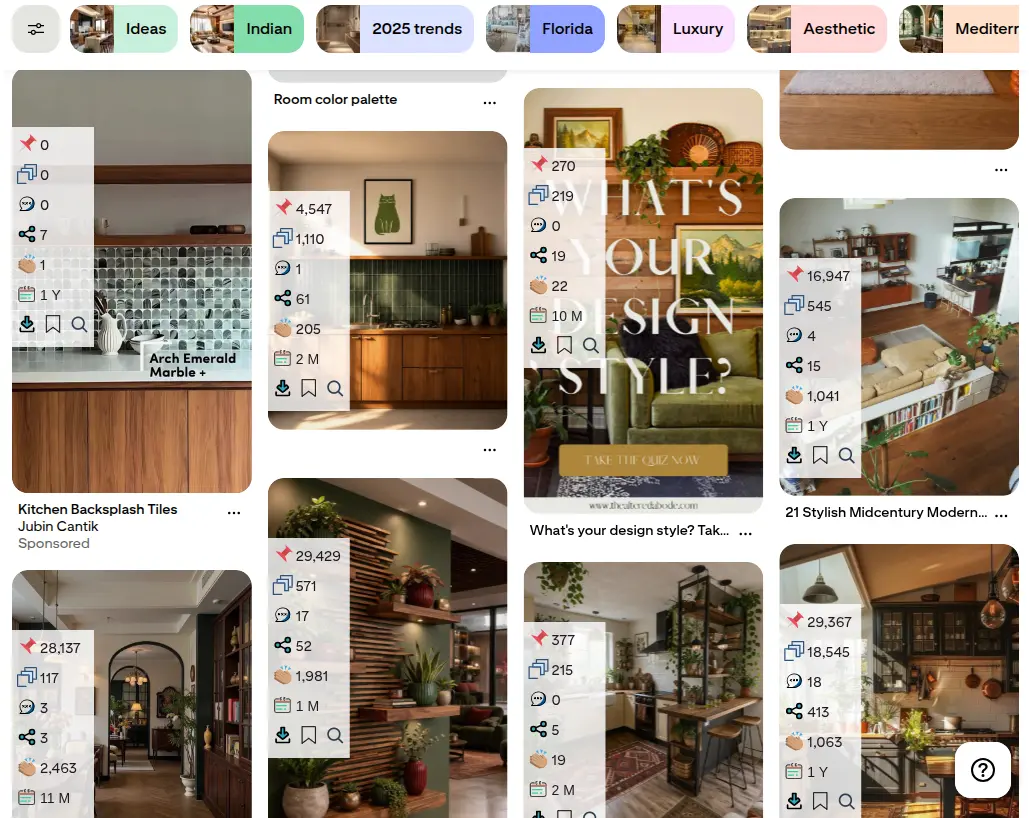
Pin Stats is not a scheduler and does not publish anything. It is for deciding what goes into one. Full disclosure: Pin Stats is ours.
Worked example · the dinner recipe blog
This week's shortlist is six recipes. For one pot pasta, the top results include several pins from this year with a few hundred saves, so the keyword looks open. Most of them are close-up photos with the cooking time in the title, which tells the blogger what to design.
Batch-design the week's pins
Design in one sitting rather than one pin a day. Make one or two designs per keyword, following what the top results have in common. Two designs per idea doubles your pins, so check it against your scheduler's limit: on a 5-post monthly plan, it is not an option.
Worked example · the dinner recipe blog
Six recipes, two designs each: 12 pins. Two of the recipes are new blog posts this week; the other four are older posts getting fresh pins.
Publish through RSS and the scheduler
Let RSS auto-publish handle new blog posts. Everything else goes into a scheduler, spread across the week rather than in one burst. Spacing them out means followers do not see a wall of your pins at once, and it makes each pin's results easier to read later.
Worked example · the dinner recipe blog
The two new posts become pins through the RSS feed with no extra work. The blogger adds a second design for each, plus the eight pins for older posts, to Pinterest's own scheduler: exactly 10, its limit, spread across the next ten days. No paid tool needed.
Check what the scheduled pins did
At month end, open Pinterest Analytics and look at saves and outbound clicks on the pins you scheduled. The designs and keywords that worked go back into step 1 for next month.
How to Schedule Pinterest Pins with ChatGPT or Claude
Neither ChatGPT nor Claude can publish to Pinterest on its own. What they do well is the slow part before scheduling: writing pin titles and descriptions, turning a week of pins into a bulk-upload CSV, and spotting patterns in what already ranks. Pinterest's own bulk upload, or the scheduler you already use, then publishes the pins.
ChatGPT or Claude: which to use for each job
| Job | ChatGPT | Claude | Pick |
|---|---|---|---|
| Write pin titles, descriptions and alt text from a blog post | Yes | Yes | Either |
| Build the bulk-upload CSV, dates spread over the week | Yes, as a downloadable file | Yes, as a downloadable file | Either |
| Reuse the same setup every week | A project or a custom GPT | A project or a skill | Claude, slightly: a skill also checks each row |
| Make the pin images | Built-in image generation, including 2:3 portrait | No built-in image generation; works through the Canva or Adobe connectors | ChatGPT |
| Publish to Pinterest | Only through a connector to a service that uses Pinterest's official API | Same | Neither on its own |
Features as described in September 2026. Both assistants change often; check before you build a routine on one feature.
Use the one you already pay for. Choose ChatGPT if you also want it to make the images. Choose Claude if you want a skill that formats the CSV the same way every week and checks it before you upload.
Three prompts to copy
Replace everything in square brackets. Each prompt works in either assistant.
Read my blog post: [URL]
Write 3 Pinterest pin variations for it. For each one give:
- a title of up to 100 characters that starts with "[keyword]"
- a description of up to 500 characters that says what the reader gets and uses "[keyword]" once
- alt text that describes the pin image: [what the image shows]
Match the tone of the post. No claims the post does not make.Turn the pins below into a CSV for Pinterest's bulk upload.
Columns, in this order: Title,Media URL,Pinterest board,Thumbnail,Description,Link,Publish date,Keywords
Rules:
- Title up to 100 characters, Description up to 500
- Leave Thumbnail empty for images
- Spread the publish dates from [Monday] to [Sunday] next week, at different times between [9:00] and [21:00] in [my time zone]
- Convert every date to UTC, formatted yyyy-mm-dd hh:mm:ss
- Every Media URL must be a direct link to an image file
Before giving me the file, list any row that breaks a rule and how you fixed it.
Pins (image URL | board | link | title | description):
[paste one pin per line]Below are the top Pinterest results for "[keyword]", with each pin's title, saves, repins and age.
1. Which formats, title patterns and topics repeat among the pins with the most saves?
2. Which recent pins are doing well, and what do they have in common?
3. Suggest 5 pin ideas for my blog [blog topic] that follow these patterns, with the keyword each one targets.
[paste the data or attach the file]Prompt 3 is only as good as the data you give it. With the free Pin Stats extension, note the saves, repins and age of the top 15 to 20 pins as you scroll. On Pin Stats Pro you can export the whole search as a CSV and attach the file instead.
Prompt, project or skill: which to set up
- A prompt is enough for a one-off batch. Copy one of the three above.
- A project suits a weekly routine, in either assistant. Put your board names, a few notes on your brand voice, your keyword list and the CSV template in a ChatGPT or Claude project once. Each week, paste in the new pins and ask for the CSV.
- A Claude skill makes the CSV come out the same way every time. Our free Pinterest bulk CSV skill spreads your pins across the days you pick, converts each time to UTC (daylight saving included), splits batches over 200 pins into several files, and lists any row that would fail. Upload the ZIP under Customize → Skills; custom skills need a paid Claude plan with code execution on. In ChatGPT, a custom GPT with the same instructions does the same job.
- A connector (MCP) lets an assistant act in another service. The Canva connector, available in both, designs pins inside the chat, using your Canva Brand Kit if you have one. Some services also offer Pinterest connectors that create or schedule pins. If you try one, use a service that publishes through Pinterest's official API, approve each pin yourself, and never give anyone your Pinterest password.
How to Choose a Pinterest Scheduler
Five checks, in order:
- What the free plan counts. A queue limit refills as pins publish; a monthly limit does not. Compare them on pins per month at your volume.
- How far ahead it schedules. Pinterest's own scheduler goes 30 days ahead. Some free plans limit the calendar to two weeks.
- Whether it uses Pinterest's official connection. Pinterest's partners (Tailwind, Buffer, Canva, Picsart) do. Be wary of any tool that asks for your Pinterest password.
- Bulk upload. If you batch-design, you want to load a week's pins in one go. Pinterest's own CSV upload already does this for free.
- How the price scales. Some tools charge per channel or per account, others per plan. Work out the monthly cost for your number of accounts, not the headline price.
If you only pin to Pinterest, its own tools pass all five checks; what they lack is convenience. A paid scheduler earns its price when you post to several networks, pin daily, or want a calendar you can see a month of at once.
When you do not need a paid scheduler
| Your situation | What fits |
|---|---|
| A few pins a week | Pinterest's scheduler, free |
| New blog posts every week | RSS auto-publish, free |
| Big batches of pins | CSV bulk upload with publish dates, free |
| You want AI to prepare the week | ChatGPT or Claude for the CSV, then bulk upload, free |
| Pinterest plus other networks | Buffer, Metricool or Later |
| Daily pinning, Pinterest first | Tailwind, on a paid plan |
Frequently Asked Questions
Can I schedule Pinterest pins for free?
Yes. Pinterest's own scheduler lets a business account queue up to 10 pins, each up to 30 days ahead, and bulk upload schedules up to 200 pins from a CSV with a publish date per row. Bloggers can also auto-publish a pin for every new post from their RSS feed.
How far in advance can I schedule pins on Pinterest?
Up to 30 days in advance with Pinterest's own scheduler. Third-party tools set their own limits, and some free plans only show a calendar two weeks ahead.
Does scheduling pins hurt their reach?
We have found no Pinterest statement that scheduled pins are distributed differently from pins published by hand. Pinterest builds its own scheduler and names Tailwind, Buffer, Canva and Picsart as scheduling partners. We would put the effort into what a pin is about and how it looks, not into how it gets published.
How many pins should I schedule a day?
Pinterest does not publish a number, and the figures in scheduler blogs are each vendor's own advice. Pick a volume you can keep up with fresh designs every week, spread it across the days, and adjust after a month of results.
Is Tailwind worth it for Pinterest?
If you pin daily across many boards and will use SmartSchedule and Communities, it can be, from $17.99 a month billed annually. Its free plan of 5 posts a month, shared with Instagram and Facebook, is too small to judge it on. For a few pins a week, Pinterest's own free tools do the job.
Can ChatGPT or Claude schedule Pinterest pins?
Not by themselves. They can write the pins and build the CSV that Pinterest's bulk upload schedules for free. Some connectors let an assistant create pins through Pinterest's official API; if you use one, approve each pin yourself rather than letting it post unattended.
Conclusion: Start with Pinterest's Own Tools
- Free plans limit different things: a queue refills, a monthly allowance does not, and a CSV upload takes 200 pins at once.
- Pinterest's own scheduler, bulk upload and RSS auto-publish cover most solo bloggers for free.
- Paid schedulers earn their price for daily pinning and for several networks in one place.
- ChatGPT and Claude are best at preparing the week; let Pinterest's own tools publish it.
The routine stays the same whichever tool you pick. Decide what to schedule from keywords and what already ranks, design the week in one sitting, let RSS and a queue publish it, and check the results at month end.
The best Pinterest scheduling tools only change how much of the publishing step you do by hand. The pins worth scheduling are decided before you open any of them.
Next step: before you design next week's pins, check what already ranks for your 3 main keywords. Install Pin Stats for free, search each keyword and read the saves on the top results. It takes a few minutes, and then you know what to schedule.